
To get SharePoint items whose text begins with certain letters, use startswith(Title,'RET') in the Filter Query of the Power Automate Get items action. The column’s internal name comes first, the text goes second in single quotes, and SharePoint returns only the matching items.
At Contoso, return orders start with RET and normal orders with ORD, so this one filter separates them. I’ll show the working flow, a test that proves startswith ignores upper and lower case, and what to use when you need contains, ends with or does not start with.
Quick answer: In Get items > Advanced parameters > Filter Query, enter startswith(ColumnInternalName,'text'), for example startswith(Title,'RET'). It works on text columns and isn’t case-sensitive. For contains, use substringof('text',ColumnInternalName). SharePoint doesn’t support endswith or not, so use a Filter array action for those.
startswith syntax in the Get items filter query
startswith(Title,'RET')- Function name: write
startswithin lowercase. - First argument: the column’s internal name, not the display name. A column created as Customer Name becomes
Customer_x0020_Name. - Second argument: the text, in straight single quotes.
- Column type: single line of text, such as Title. Use other operators for numbers, dates and choices.
If filter queries are new to you, start with how to use the Get items filter query, which covers the basics of each operator.
Build the flow and test startswith
My list is called Customer Orders. Title holds the order number (ORD-1001 to ORD-1012 and RET-2001 to RET-2003), and the other columns are CustomerName, OrderDate, Status, Region and Amount.
- Create an instant cloud flow with the Manually trigger a flow trigger.
- Add Get items, select the site and the Customer Orders list.
- Under Advanced parameters, select Show all and enter
startswith(Title,'RET')in Filter Query. - Add a Select action with From set to the Get items
value, so the run shows a short list of the results.
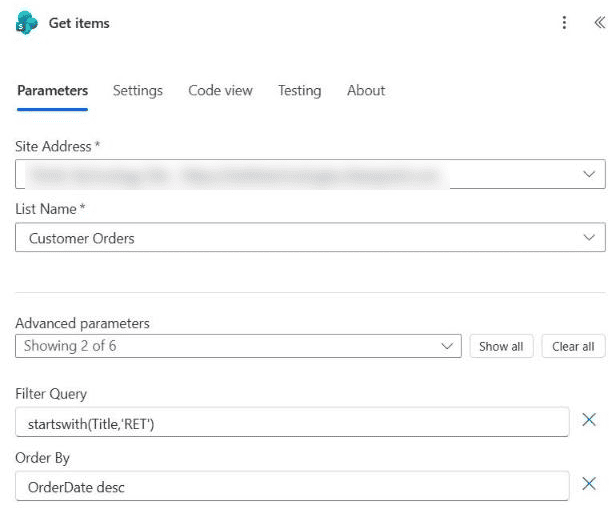
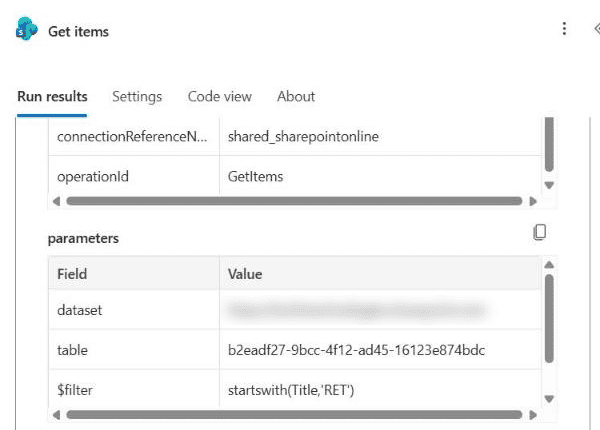
Save the flow, select Test > Manually, and run it. In the run history, open Get items: the $filter row shows exactly what was sent to SharePoint.
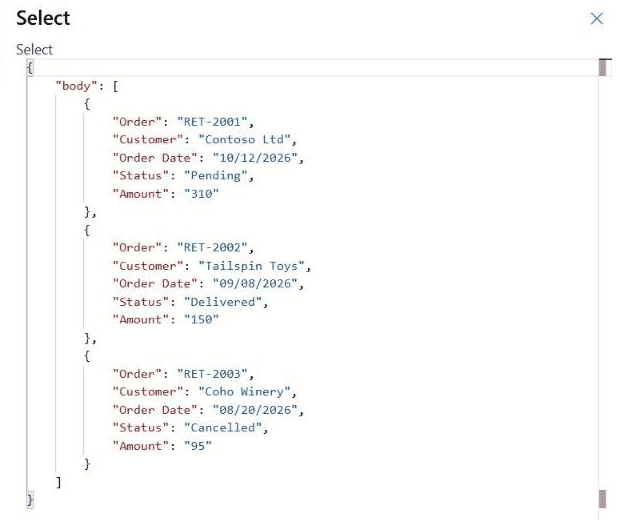
Open the Select step and choose Show raw outputs. Only the three return orders came back, RET-2001, RET-2002 and RET-2003, while the twelve ORD orders were filtered out on the server.
Is startswith case-sensitive?
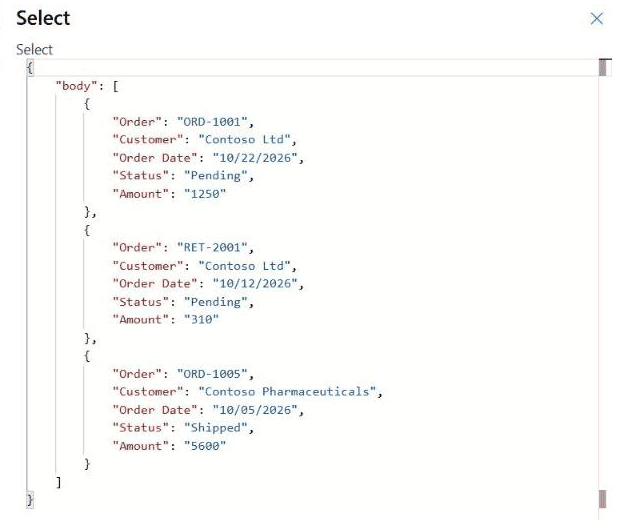
No. I changed the filter to startswith(CustomerName,'contoso'), all in lowercase, and ran the flow again. It returned the orders for Contoso Ltd and Contoso Pharmaceuticals, even though both names start with a capital C.
That’s helpful when people type values in different ways. If you ever need an exact, case-sensitive match, filter the results afterwards with the startsWith() expression in a Filter array action in Power Automate.
Combine startswith with other conditions
startswith works with and and or like any other condition. This filter returns open return orders only:
startswith(Title,'RET') and Status eq 'Pending'You can also check two prefixes at once. Use parentheses when you mix and and or, because and is evaluated first:
(startswith(Title,'RET') or startswith(Title,'CRD')) and Region eq 'East'For more examples, see Get items filter queries with multiple conditions.
Contains: use substringof
SharePoint doesn’t support contains in a filter query. The OData function for contains is substringof, and its arguments are the other way around, text first and column second:
substringof('Wood',CustomerName)On my list, this returned ORD-1012 for Woodgrove Bank. Don’t confuse it with the contains() expression function, which works in conditions and Filter array but not inside a Get items filter query.
Ends with, does not start with and other functions that fail
SharePoint’s OData support is limited. Microsoft’s list of supported operators includes startswith and substringof, but not endswith, tolower, toupper, substring or not. I tested two of them against the same list:
| Filter query | Result |
|---|---|
endswith(Title,'01') | Error: the function operator ‘endswith’ is not supported or its usage is invalid |
not startswith(Title,'RET') | Error: value does not fall within the expected range |
substringof('Wood',CustomerName) | Works |
The workaround is to get the items first and then use Filter array with an expression. The workflow expression language does have the startsWith() and endsWith() functions, and you can wrap them in not():
| You want | Filter array condition (advanced mode) |
|---|---|
| Ends with 01 | @endsWith(item()?['Title'],'01') |
| Does not start with RET | @not(startsWith(item()?['Title'],'RET')) |
| Case-sensitive start | @startsWith(item()?['Title'],'RET') |
Keep as much of the filtering as you can in Get items, so the flow loads fewer items, and use Filter array only for the part SharePoint can’t do.
startswith in Power Apps
Power Apps has its own StartsWith function with the same idea and different syntax. For a gallery on the same list, use:
Filter('Customer Orders', StartsWith(Title, "RET"))StartsWith is delegable to SharePoint, so it works on large lists without the 500-row warning. If you see a delegation warning anyway, check how to fix Power Apps delegation warnings.
Dynamic values and special characters
You don’t have to hard-code the text. Put dynamic content or an expression inside the quotes, for example a value typed when the flow starts:
startswith(Title,'@{triggerBody()?['text']}')- Apostrophes: double them, so O’Brien becomes
startswith(CustomerName,'O''Brien'). For dynamic values, usereplace(value,'''',''''''). - Ampersand, plus and hash signs: these can break the request. If a value contains them, test it first, or filter the rest with Filter array.
- Large lists: Get items returns 100 items by default. Set Top Count or turn on Pagination when more items can match.
Troubleshooting
- Column does not exist: use the internal name. Open the column in list settings and copy the name from the URL.
- The expression is invalid: look for curly quotes, a missing comma or
startsWithwith a capital W. - No items returned: check the
$filtervalue in the run history, and make sure the column is text, not a choice or lookup column. - Error on endswith or not: these aren’t supported in SharePoint filter queries. Use Filter array instead.
Next, look at these filter query tutorials:
Frequently Asked Questions
What is the syntax of startswith in a Power Automate filter query?
startswith(ColumnInternalName,’text’), for example startswith(Title,’RET’). The function name is lowercase and the text goes in single quotes.
Is the startswith filter query case-sensitive?
No. In my test, startswith(CustomerName,’contoso’) returned items starting with Contoso. For a case-sensitive check, use the startsWith() expression in Filter array.
How do I filter items that contain a word?
Use substringof(‘text’,ColumnInternalName). It is one of the string functions in the SharePoint OData operations reference, while contains is not.
Can I use endswith or not startswith in Get items?
No. SharePoint rejects both. Get the items with a broader filter, then use Filter array with endsWith() or not(startsWith()).
Does startswith work on choice or number columns?
It’s meant for text columns. Use eq for choice values and ge or le for numbers and dates.

Preeti Sahu is a Microsoft MVP for Power Apps with over six years of experience working with SharePoint Online and the Power Platform. She is the co-author of the book Microsoft Power Platform: A Deep Dive. As a Power Platform developer, she has built various tools with Power Apps and Power Automate, and she makes Microsoft 365 videos for YouTube.