
The Power Automate chunk() function cuts a string or an array into pieces of the length you choose, and returns them as an array. To split an 18-character activation code into blocks of four, put this in a Compose action:
chunk('M7Q2K9X4P8R3T6W1B5', 4)It returns ["M7Q2","K9X4","P8R3","T6W1","B5"]. The last piece holds whatever is left over, so it can be shorter.
In this tutorial, I’ll show you how power automate chunk works on text and arrays, how to batch items with it in an Apply to each loop, and the errors I hit in a real test flow.
Quick answer: Use chunk(collection, length). It returns an array of equal parts, with the remainder in the last one. Wrap null values in coalesce() and pass a whole number of 1 or more.
What is the chunk() syntax in Power Automate?
There are two forms, one for text and one for arrays:
chunk('<collection>', <length>)
chunk([<collection>], <length>)- collection (required): the string or array you want to split.
- length (required): how many characters or items go in each chunk. It must be a whole number of 1 or more.
The result is always an array. If you need text back afterward, convert the array to a string with join(), as I do below.
In the designer, add a Compose action, select the input box, open the fx (expression) editor and type the formula without a leading @. The action’s Code view then shows it with the @:
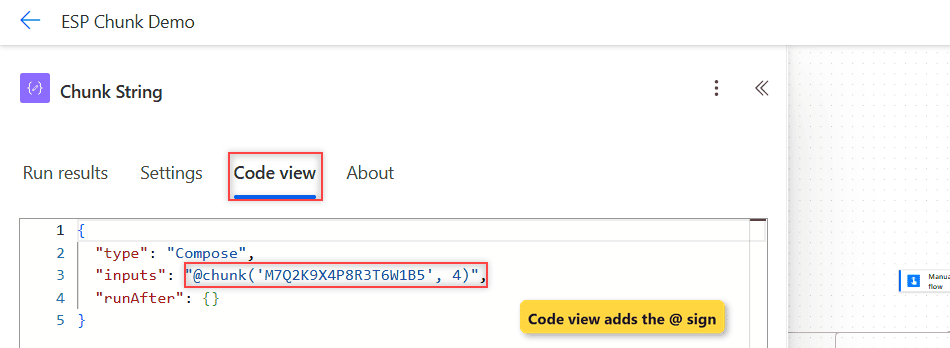
Split a string into equal parts
I built one test flow, ESP Chunk Demo, and reused the activation code M7Q2K9X4P8R3T6W1B5 in every example. Here’s the run output of the basic split:
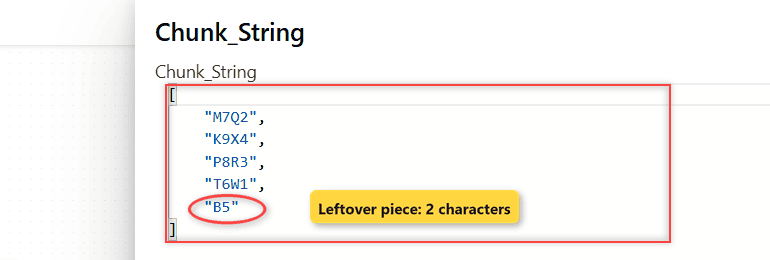
Eighteen characters don’t divide by four, so the fifth chunk holds only two.
Spaces count as characters, too. Splitting a name shows that:
chunk('Adele Vance', 3)That returns ["Ade","le ","Van","ce"]. The second chunk ends with a space. If you’d rather remove characters from the string first, do it before the split.
How do I format a code with dashes using chunk()?
This is the use I reach for most. Split the code, then glue the pieces back together with a dash:
join(chunk('M7Q2K9X4P8R3T6W1B5', 4), '-')It returns M7Q2-K9X4-P8R3-T6W1-B5, which is much easier to read in an email. For fixed positions instead of equal blocks, the substring() function is the better fit.
Two more helpers answer common questions about the pieces:
length(chunk('M7Q2K9X4P8R3T6W1B5', 4))
last(chunk('M7Q2K9X4P8R3T6W1B5', 4))
The first returns 5, the number of chunks. The second returns B5, the leftover piece.
Turn a string into an array of characters
Set the length to 1 and every character becomes its own array item:
chunk('ORD-4471', 1)The run returned ["O","R","D","-","4","4","7","1"]. Unlike the split() function, chunk() doesn’t need a delimiter, so nothing is lost.
Split an array into batches
chunk() works the same way on arrays. Here are seven SKUs split into groups of three:
chunk(createArray('SKU-1001','SKU-1002','SKU-1003','SKU-1004','SKU-1005','SKU-1006','SKU-1007'), 3)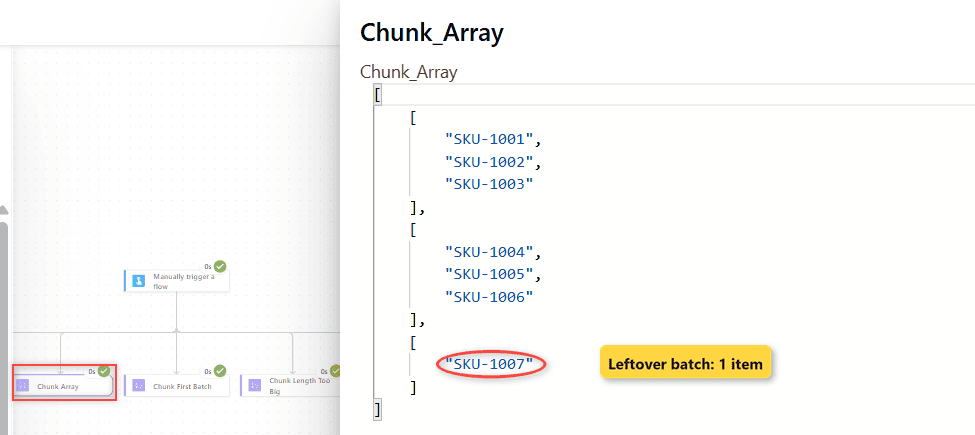
The output is an array of arrays: [["SKU-1001","SKU-1002","SKU-1003"],["SKU-1004","SKU-1005","SKU-1006"],["SKU-1007"]]. To grab only the first batch, wrap it in first(), which returned ["SKU-1001","SKU-1002","SKU-1003"].
Process batches with Apply to each
Batching is where chunk() pays off, for example when an action accepts only so many items per call. Feed the chunked array to an Apply to each loop, and each iteration gets one batch:
Apply to each  ->  Select an output from previous steps:
chunk(createArray('SKU-1001','SKU-1002','SKU-1003','SKU-1004','SKU-1005','SKU-1006','SKU-1007'), 3)

Compose (inside the loop):
join(item(), '; ')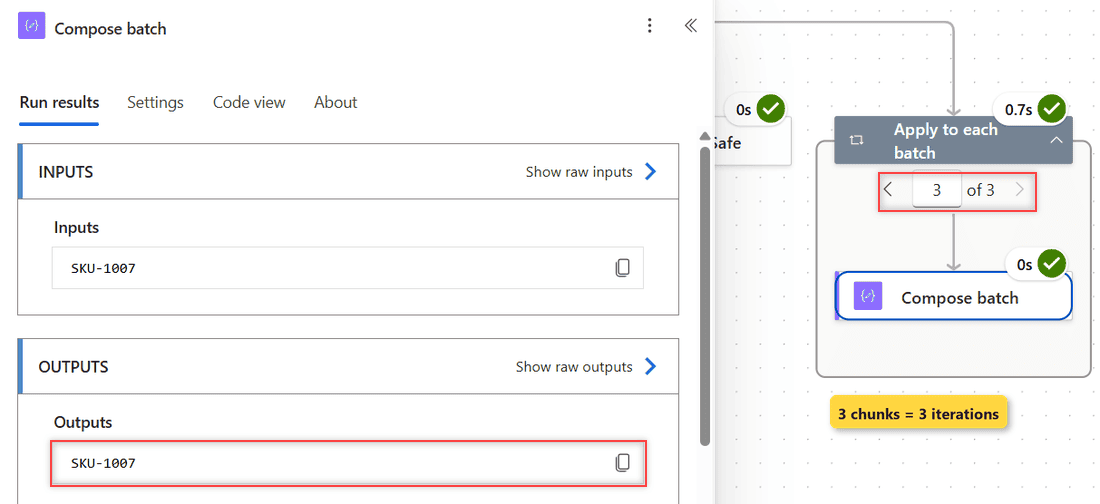
The loop ran three times. The outputs were SKU-1001; SKU-1002; SKU-1003, then SKU-1004; SKU-1005; SKU-1006, and finally SKU-1007 on its own.
Edge cases and errors
Every odd input got its own parallel Compose action, so one failure didn’t hide the others:
| Expression | Real result |
|---|---|
chunk('M7Q2', 10) | ["M7Q2"], one chunk when the length is bigger than the text |
chunk('M7Q2K9', '2') | Fails: expects its second parameter to be of type integer |
chunk('', 4) | [], an empty array |
chunk(null, 4) | Fails: expects its first parameter to be of type string or array |
chunk('M7Q2', 0) | Fails: expects chunk size to be a positive integer |
chunk(coalesce(null, ''), 4) | [], no error |
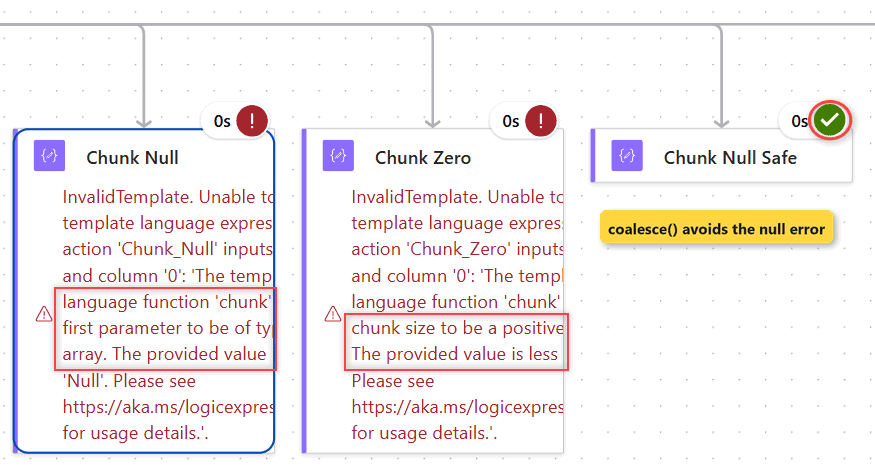
Important: values from a blank SharePoint column or an empty trigger input arrive as null. Wrap them in coalesce(value, '') before you call chunk(). Not sure a value is filled in? Check if the string is empty first.
The same goes for the length. A number that comes from a text trigger input is a string, so wrap it as int(...), or chunk() fails with the integer error shown above.
Other Power Automate expressions that pair well with chunk():
Frequently Asked Questions
Can chunk() split by a character such as a comma?
No. chunk() splits by count only. To split on a delimiter like a comma or a space, use split() instead.
How do I split an array into batches of 100 in Power Automate?
Use chunk(yourArray, 100) as the input of an Apply to each loop. Each iteration then receives one array of up to 100 items, and item() refers to that batch.
Does chunk() count spaces?
Yes. Every character counts, including spaces and dashes. Microsoft’s chunk() function reference lists the syntax and examples.

Preeti Sahu is a Microsoft MVP for Power Apps with over six years of experience working with SharePoint Online and the Power Platform. She is the co-author of the book Microsoft Power Platform: A Deep Dive. As a Power Platform developer, she has built various tools with Power Apps and Power Automate, and she makes Microsoft 365 videos for YouTube.