
While working on the Power Apps form, I was required to display a doctor’s appointment date in two different formats: a Short date and a Long date. In this case, the Power Apps Date picker control is very useful for displaying dates.
In this Power Apps tutorial, I will explain the Power Apps Date Picker control, its properties, and how to use it using the various examples below.
- Change the color in the Power Apps date picker
- Customize the icon background color in the Power Apps date picker
- Format the date in the date picker control in Power Apps
- Display the date in yyyy/mm/dd format within the Power Apps date picker
- Display dates in different languages within the Power Apps date picker
- Create a Power Apps date picker with time
- Working with Power Apps date picker datetimezone
- How to use Power Apps date picker starts on Monday
- Set a maximum and minimum date in Power Apps Date picker
- Power Apps date picker iseditable
Power Apps Date Picker Control
In Power Apps, an input control named “Date Picker” allows the user to select a specific date.
Using a Date Picker control instead of a Text input control can help ensure that the user enters a date in the correct format.
We can find that control under the Insert tab > Input > Date Picker > Select. It will create a data picker control within the Power Apps screen that appears with the current date as default.

This is how to add a Power Apps date picker control.
Power Apps Date Picker Properties
The Power Apps date picker controls various properties. Here, we will describe some of these properties and their uses.
| Property Name | Description |
|---|---|
| AccessibleLabel | This property is assigned to a screen reader label. |
| Border Color | A user can specify the color for a border. |
| Border Style | This property specifies the type of border that the control should have [“Solid,” “Dashed,” “Dotted,” “None”]. |
| DateTimeZone | It specifies whether to display the date in Coordinated Universal Time (UTC) or the user’s local time. |
| DefaultDate | When the user opens the app, the specific date will be selected unless the user changes it. By default, the date picker will select today’s date. |
| DisabledBorderColor | When the DisplayMode property of the control is set to Disabled, it indicates a color for the control’s border. |
| DisplayMode | Determines whether it enables user input (Edit), only displays data (View), or is disabled (Disabled). |
| EndYear | The date-picker control allows users to select dates up to a specified year. |
| FocusedBorderColor | This defines the color of a control’s border when the control is in focus. |
| Format | This control allows the user to specify a date in text format. The default property is ShortDate,[the control displays 12/31/2017.] Alternatively, you can set the Format property to LongDate [30 November/2020]. |
| InputTextPlaceholder | This setting determines whether the Date Picker text is editable. Changes can only be made by using the calendar when set to false. |
| IsEditable | The distance between the text and the bottom edge of the control. |
| Language | This property determines the language used to format dates, including the months’ names. If not specified, the language is determined by the user’s device settings. The available values are “EN-us” and “FR.” |
| OnChange | When the user changes a date, it specifies what action to perform. |
| OnSelect | When the user clicks on a control, it specifies what action to perform. |
| PaddingBottom | When the control’s DisplayMode property is set to Disabled, it indicates a color for its border. |
| Reset | The distance between the text and the bottom edge of the control. |
| StartOfWeek | The distance between the text and the bottom edge of the control. |
| StartYear | This value represents the minimum year selectable by the user in a date-picker control. |
| Visible | This represents the day of the week to be displayed in the initial column of the date-picker control. |
Power Apps Date Picker Examples
Once the date picker control has been added to the screen, we will demonstrate how to use it in Power Apps with various examples.
Example – 1: Display Date Difference From Today’s Date Using Power Apps Date Picker
- On the Power Apps screen, add a date picker control.
- Rename the control as “SubmissionDate”.

- Next, add a Text label control to the screen and place it near the date picker control.
- Insert the below expression on the Text property of the label control.
Text = DateDiff(Today(), SubmissionDate.SelectedDate) & " days to go for task Submission!"
Let’s preview the app. By default, the label control displays 0 days, as the current date is displayed on the date picker control.
If we pick another date from the date picker control, then the label control will appear like the below:

Example – 2: [Display Long Date Based on Power Apps Selected Date]
I created a Power Apps canvas app and added a Date picker and Text label control. Whenever the user selects a particular date from the date picker, the text label will display the selected date details [Long date format] as shown below:

Let me show you how to achieve this:
- On the Power Apps screen, insert the Date picker control as shown below:

- Now, I will rename the date picker to “dte_SelectedDate,” as shown below:

- Insert a Text label control -> Set its Text property to:
Text(
    DateTimeValue(dte_SelectedDate.SelectedDate),
    DateTimeFormat.LongDateTime
)
Where,
- dte_SelectedDate = Date picker control name

- Once the app is ready, save, Publish, and Preview it. Whenever the user selects a date from the date picker, the text label will display the selected date [long date format].

Power Apps Date Picker Color
In this section, we will discuss how to set color within the Power Apps date picker control. The control has a property named “Color” that allows us to change the text and background color.
Example-1: Power Apps date picker text color
We will see how to set a different color to the Power Apps date picker text here. To check this, we will use the above example of the Power Apps date picker control.
- Select the control.
- Navigate to the right side Properties panel.
- Find the properties of Color.

- Click on the A symbol and select a color from the color picker.
- It allows selecting a standard color (which will directly apply to the control) or a custom color (you can choose a custom color).

This is how to change the text color in the Power Apps date picker control.
Example-2: Power Apps date picker background color
Similarly, if you want to change the Power Apps date picker control’s background color, click on the Paint icon under the Color property. Select a color from the color picker. We can see the selected color will be applied to the control’s background.

This is how to change the background color within the Power Apps date picker control.
Example-3: Power Apps date picker border-color
The Power Apps date picker control allows us to change the control’s border color as per the requirement. For this, there is a property named BorderColor. You can find this property under the properties panel.

You can choose a color for the control’s border from this color picker or enter the color code in RGBA format on the BorderColor property. You can also give the BorderColor property a color name to set the control’s border color.

This is how to give a border color to the Power Apps date picker control.
Example-4: Power Apps date picker color theme
There is another way to change the entire color of the date picker control. When we change the app’s theme, the color of the date picker control will also change.
In the Power Apps screen, we can find several themes under the Themes section.

Let’s select a theme (suppose Red) and apply that theme to the app. We can see the date picker will change like below:

This is how to change a Power Apps date picker’s color based on the theme.
Power Apps date picker icon background color
In the Power Apps date picker control, a property named IconBackground allows you to change the color of the icon’s background.
Let’s change the background of the control’s icon to DarkGreen color.
IconBackground = DarkGreen
This is how to change the icon’s background color within the Power Apps date picker control.
Power Apps date picker format
This section will show how to format a date within the Power Apps date picker control. There is a property named Format under the Date Picker Control that allows displaying the date in various formats within the control, such as LongDate, LongDateTime, LongDateTime24, ShortDate, ShortDateTime, ShortDateTime24, SortTime, UTC, etc.
By default, the date appears in ShortDate format within the Power Apps date picker control. (i.e., 11/3/2022).
Let’s format the date to display in LongDate format. For this, select the Power Apps Date Picker control and set the Format property as below:
Format = DateTimeFormat.LongDate
You can find all the above formats within the control’s Format property below:

This is how to format a date within the Power Apps date picker control.
Display the date in yyyy/mm/dd format within the Power Apps date picker
In the preceding example, we saw how to format a date in the Power Apps date picker control. In this example, we’ll format the selected date to yyyy/mm/dd.
That is, instead of a sort date, we want to format the selected date to yyyy/mm/dd format when the user selects any required date.
To work with this requirement, the following steps are:
- Add a date picker control to select the date on the Power Apps screen.
- Next, add a Text label control to the screen.
- Insert the below expression into the label’s Text property to format the selected date to the desired format.
Text = Text(DatePicker1.SelectedDate, "yyyy/mm/dd/")Where DatePicker1 is the name of the Power Apps date picker control name.

Similarly, we can format the selected date to “yy/mm/dd”, “yyyy/mmm/dd”, “yyyy/mmmm/dddd”, etc formats.
This is how to format a date to “yyyy/mm/dd” from the Power Apps date picker control.
Display dates in different languages within the Power Apps date picker
Here we will see how to represent a date in a different language within the Power Apps date picker control.
There is a specific property named “Language” that is used to format the language as per the user’s requirement, including the month’s names. It allows inserting the language format in that specified property such as “EN-us”, “FR”, “da”, “es”, “it”, “ko-KR”, etc.
Example-1: Power Apps date picker using Language property
Let’s take an example to see how to change the Power Apps date picker language. The following steps are:
- Add a date picker control to the Power Apps screen. It will display the date and the months in the default format. (i.e, 11/3/2022)

- To change the language, select the date picker format and insert a language format into the Language property. For example, “De.“
Language = "De"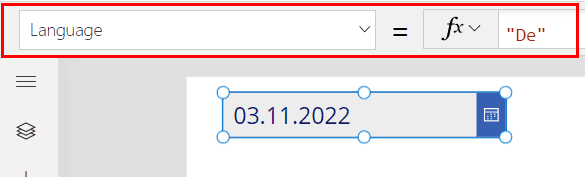
- We can see it will format the names inside the date picker control like the below:

This is how to format the language within the Power Apps date picker control.
Example-2: Power Apps date picker format Language using Text
This section will show how to format the Power Apps date picker language using the Text().
The Syntax for this function is:
Text(Value, "format_text", language)Where,
- Value – The selected date from the date picker control.
- “format_text” – The specified format to convert the selected date (i.e., “yyyy/mmm/dd“, “dd/mm/yy“, etc)
- language – The selected language code to format the text value i.e., selected date.
Let’s take a simple example to see how to format the language using the text() and the following steps are:
- On the Power Apps screen, add a Date Picker control.
- Again, add a Text Label control to the screen.
- Insert the below expression on the label’s Text property.
Text = Text(DatePicker1.SelectedDate, "yyyy/mm/dd", "en-GB")Where DatePicker1 is the name of the Power Apps Date picker control.

In the above example, we have selected a date from the date picker control, and it will be formatted to the desired language.
This is how to format the language of a selected date from the Power Apps date picker control.
Create a Power Apps date picker with time
While working with the Power Apps date picker control, we have seen no option to choose a specific time per the user’s requirement. It only allows the user to select the desired date.
But in this section, we will see how to build a date picker with the time within the Power Apps.
Case 1: Create a Date Time picker using the Collection
To fulfill this requirement, the following steps must be taken:
- On the Power Apps screen, add a date picker control.
- Then, add two combo box controls to the screen. From them, one is for the Hour, and the other one is for the Minute. Set the Toggle Off on the Allow Multiple Selections for both the Combobox controls.
- Next, on the screen’s OnVisible property, insert the below expression to create collections to hold data for hours and minutes.
OnVisible =

//Collection for Hour
ForAll(
    Sequence(25,0,1),
    Collect(
        CollHours,
        {HourText: If(ThisRecord.Value < 10, "0" & ThisRecord.Value, ThisRecord.Value), HourValue: ThisRecord.Value}
        )
    );

//Collection for Minute
ForAll(Sequence(61,0,1),
    Collect(CollMinutes,
             {MinuteText: If(ThisRecord.Value < 10, "0" & ThisRecord.Value, ThisRecord.Value), MinuteValue: ThisRecord.Value}
)
);
where CollHours and CollMinutes are the names of the collections. HourText, HourValue, and MinuteText, MinuteValue are the names of the collections’ headers, respectively.

- Now, select the Hour Combobox and set the properties below:
Items = CollHours
DisplayFields = ["HourText"]
SearchFields = ["HourText"]
DefaultSelectedItems = ["00"]
- select the Minute Combobox and set the properties below:
Items = CollMinutes
DisplayFields = ["MinuteText"]
SearchFields = ["MinuteText"]
DefaultSelectedItems = ["00"]
- Finally, add a ‘text label’ control to the screen and insert the below expression on the Text property to display the selected date and time.
Text = DatePicker1.SelectedDate + Time(Value(Hour_Cmb.Selected.HourText), Value(Minute_Cmb.Selected.MinuteText), 0)Where DatePicker1 is the name of the Power Apps date picker control. Hour_Cmb and Minute_Cmb are the names of the Power Apps combo box controls.

Let’s preview this app and select the date as well as the time. We can see the date and the time will appear below:

This is how to create a date picker with time in PowerApps.
Case 2: Create a date-time picker without a collection
There is another way to create a Power Apps date picker with time. The following steps are:
- On the Power Apps screen, add a date picker control.
- Add 2 dropdown controls to store and select the Hours and Minutes, respectively.
- Select the first dropdown (meant for the Hours) and insert the values below on the dropdown’s Items property.
Items = ["00", "01", "02", "03", "04", "05", "06", "07", "08", "09", "10", "11", "12", "13", "14", "15", "16", "17", "18", "19", "20", "21", "22", "23"]- Similarly, select another dropdown control and insert the below values within the dropdown’s Items property.
Items = ["00", "01", "02", "03", "04", "05", "06", "07", "08", "09", "10", "11", "12", "13", "14", "15", "16", "17", "18", "19", "20", "21", "22", "23", "24", "25", "26", "27", "28", "29", "30", "31", "32", "33", "34", "35", "36", "37", "38", "39", "40", "41"," 42", "43", "44", "45", "46", "47", "48", "49", "50", "51", "52", "53", "54", "55", "56", "57", "58", "59"]
- Add a label control to the screen and insert the below expression on the label’s Text property.
Text = Appoinment_DatePicker.SelectedDate + Time(Value(Hour_dd.Selected.Value), Value(Minute_dd.Selected.Value), 0)Where
- Appoinment_DatePicker: Name of the Power Apps date picker control
- Hour_dd and Minute_dd: Name of the Power Apps dropdown controls

That’s it! Let’s preview the app and select the desired date at a specific time. We can see the value will appear shown as below:

This is how to create a Power Apps date picker with time.
Power Apps date picker DateTimeZone
Here, we will see how to work with the DateTimeZone within the Power Apps date picker control.
Under the Power Apps date time picker, we can find a property called “DateTimeZone” that controls whether the date is displayed in UTC or the user’s local time.
To work with this property within the Power Apps date picker control, the following steps are:
- On the Power Apps screen, add a date picker control.
- Select the control, and click on the DateTime Zone property.
- Insert the expression below into the control’s DateTimeZone property to display the current date based on the Local time zone.
DateTimeZone = DateTimeZone.Local
The above screen shows that the date picker control displays today’s date based on the Local DateTime Zone.
Similarly, we can display today’s date in the UTC time zone. To do this, insert the expression below into the DateTimeZone property.
DateTimeZone = DateTimeZone.UTC
The date picker control displays that date because the current date in UTC is 11/15/2022. This is how to work with the datetimezone inside the Power Apps date picker control.
Power Apps date picker starts on Monday
We’ll look at how to create a Power Apps date picker control that starts on Monday. When we work with the Power Apps date picker control, it usually starts on Sunday.

However, we must set the date for picker control to start on Monday for certain requirements.
To fulfill this requirement, insert the expression below into the StartOfWeek property of the Power Apps date picker control.
StartOfWeek = StartOfWeek.Monday
Let’s preview the date picker control; we can see the control starts on Monday shown below:

This is how to set the Power Apps Date picker to start on Monday.
Set a maximum date in Power Apps Date Picker
Here, we will see how to set a maximum date while working with the Power Apps date picker control.
That is, we will add a condition to the Power Apps date picker control, limiting the user to selecting a maximum date that is comparable to the current date.
To meet this requirement, add a Power Apps date picker control to the screen and insert the expression below into the OnChange property of the DatePicker Control.
OnChange = If(Self.SelectedDate > Today() ,
          Notify( "Start date can't be greater than today",
                  NotificationType.Error);
          Reset(Self)
)
As per the above expression, it will notify the user when selecting the greater date and reset to the current date.

That’s all! Let’s check out the app. Choose a date that is greater than the current date i.e., 11/16/2022. (Ex: 11/25/2022)

This is how to set a maximum date within the Power Apps date picker control.
Set a minimum date in Power Apps Date Picker
Similarly, we will see how to set a minimum date while using the Power Apps date picker control.
That means when the user selects a minimum or sorter date rather than a specific date, it will notify the user and also reset to the current date.
For this, add a Power Apps date picker control to the screen and insert the formula below on the OnChange property of the date picker control.
OnChange = If(Self.SelectedDate < Today() ,
          Notify("The selected date can't be shorter than today",
                 NotificationType.Error);
          Reset(Self)
)
According to the above expression, the user cannot select a date less than the current one.

Ley’s preview the app. Select a date that is less than the current date. We can see it will display an error message as well as reset to the current date.

As we have selected a date, i.e., 11/11/2022, it displays the error message as above instead of the selected date.
This is how to work with the minimum date while working with the Power Apps date picker control.
Power Apps date picker iseditable
In Power Apps, a property named Iseditable under the Power Apps date picker control allows the user to change the Date Picker text. If false, the only way to change the date is to use the calendar.
Assume we don’t want users to be able to change the date value field at all. If they attempt to do so, the system should immediately force them to select a date and display the date picker.
In such case, we can set the Power Apps date picker control’s Iseditable property to false.
Iseditable = false
This is how to work with the Power Apps date picker iseditable property.
You may like the following Power Apps tutorials:
- Power Apps Modern Date Picker Control
- Patch Power Apps Date Picker
- Reset Power Apps Date Picker
- get month name from date in Power Apps
Conclusion
I hope this article helped you understand the various scenarios surrounding the Power Apps Date Picker control, such as how to format a date picker, display dates in different languages, and more.

After working for more than 18 years in Microsoft technologies like SharePoint, Microsoft 365, and Power Platform (Power Apps, Power Automate, and Power BI), I thought will share my SharePoint expertise knowledge with the world. Our audiences are from the United States, Canada, the United Kingdom, Australia, New Zealand, etc. For my expertise knowledge and SharePoint tutorials, Microsoft has been awarded a Microsoft SharePoint MVP (12 times). I have also worked in companies like HP, TCS, KPIT, etc.

