
If you use SharePoint lists or Dataverse tables in Power Apps, you will almost always run into duplicate values in dropdowns and combo boxes. This is common with text fields like Country or Department, and even more with Person columns, where the same user appears in many rows.
In this Power Apps tutorial, let’s walk through how to populate distinct values in Power Apps combo box, step by step, using simple formulas you can reuse in your own apps.
Populate Distinct Values in Power Apps Combo Box
So let’s get started!
Scenario and SharePoint List Setup
Assume you have a SharePoint list named Customer Details with these columns:
| Column | Data type |
|---|---|
| User Name | Title – Single line of text |
| Country | Single line of text |
| Subscription Type | Choice – Premium, Standard, Basic |
| Subscription Handled By | Person or Group |
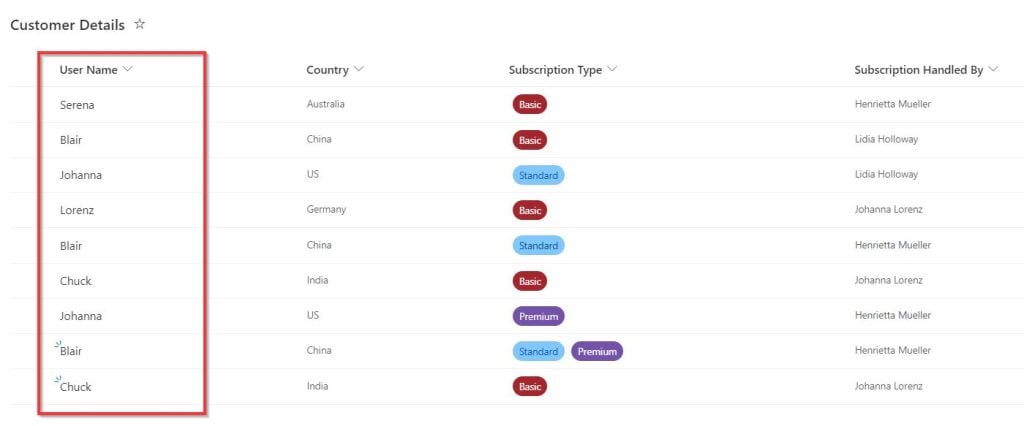
In the list, the Title and Subscription Handled By columns contain duplicate values because the same customer or person appears in multiple rows. Your goal is:
- Show each customer name only once in a Power Apps combo box.
- Show each person only once when using a Person column in a combo box.
We’ll do this using the Distinct function.
What the Power Apps Distinct Function Does
Power Apps Distinct function looks at a table, evaluates a column or formula, and returns a one‑column table called Result that has only unique values.
Basic pattern:
Distinct( Table, ColumnName )
Or with a Person column property:
Distinct( Table, PersonColumn.DisplayName )
You can then bind this one‑column table to a combo box and show only unique values.
Power Apps Distinct Values From a Text Column
First, let’s remove duplicates from the Title column (User Name) and show only unique user names in a Power Apps combo box.

- Insert a Power Apps Combo box control on your screen.
- Set its Items property to:
Distinct( 'Customer Details', Title ) Here:
Customer Detailsis your SharePoint list.Titleis the column with duplicate values.Distinctreturns a one‑column table with a field called Result.

- Now tell the combo box what to display.
In the Fields pane (or using the formula bar if you prefer), set:- Primary text =
Result
- Primary text =
- (Optional but recommended) Make it a single‑select combo box:
- Set
SelectMultiple=false.
- Set
When you preview the app and open the combo box, you will now see each user name only once, even if it appears multiple times in the SharePoint list.
If you want the list sorted alphabetically, you can wrap the formula:
Sort(
    Distinct(
        'Customer Details',
        Title
    ),
    Result,
    Ascending
)
This keeps the values distinct and also sorts them in ascending order in Power Apps.
Power Apps Distinct Values From a SharePoint Person column
Now let’s do the same thing with a SharePoint Person or Group column: Subscription Handled By. Person columns are actually records (with DisplayName, Email, Claims, etc.), so we usually work with the DisplayName property.

- In the Power Apps screen, insert another Combo box control.
- Set its Items property to:
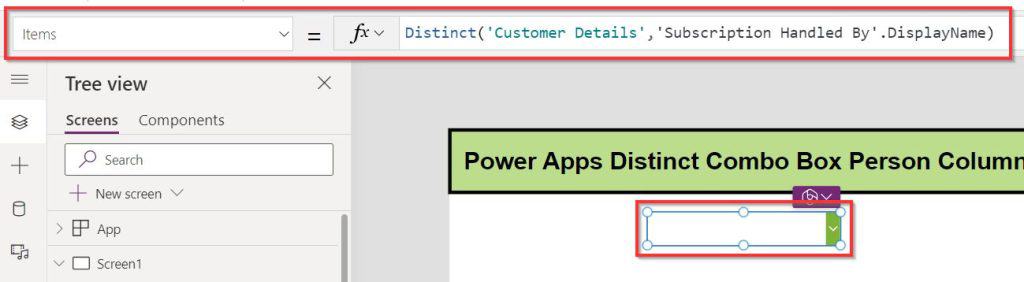
Distinct( 'Customer Details', 'Subscription Handled By'.DisplayName ) Here:
Subscription Detailsis the SharePoint list.Subscription Handled Byis the Person column..DisplayNamegives you the person’s name.Distinctreturns unique display names in the Result column.
- Set Primary text to
ResultSo the combo box shows the name.
Again, if you want the names sorted:
Sort(
    Distinct(
        'Customer Details',
        'Subscription Handled By'.DisplayName
    ),
    Result,
    Ascending
)
This will show each person only once in the Power Apps combo box, even if they appear in many rows of the list.
Handling Large Lists and Delegation in Power Apps
If your SharePoint list is small (within the delegation limit), the simple Distinct formula will work fine. For very large lists, you may see a Power Apps delegation warning on Distinct, which means Power Apps might not be able to guarantee that it has checked every row.
A common pattern is to filter first using a delegable function, such as StartsWith, then apply Distinct to the filtered result. For example, if you want to search names in a large list:
With(
    {
        _Search:
            Filter(
                'Customer Details',
                StartsWith(
                    'Subscription Handled By'.DisplayName,
                    Self.SearchText
                )
            )
    },
    Sort(
        Distinct(
            _Search,
            'Subscription Handled By'.DisplayName
        ),
        Value
    )
)
This way, the heavy filtering work is delegated to the data source, and Distinct runs on a smaller local set.
We can use these as building blocks in your own Power Apps apps whenever you want a clean combo box that shows only unique values, whether you are working with text columns or Person columns.
Additionally, you may like some more Power Apps articles:
- Create an Auto Scrolling Gallery in Power Apps
- Create Custom Progress Bar Using SharePoint Choice Values
- Set Dropdown Value On Button Click in Power Apps
- Auto Format Phone Number in Power Apps Form
- Set a Button to Disabled in Power Apps

Preeti Sahu is an expert in Power Apps and has over six years of experience working with SharePoint Online and the Power Platform. She is the co-author of Microsoft Power Platform: A Deep Dive book. As a Power Platform developer, she has worked on developing various tools using Power Apps and Power Automate. She also makes Microsoft 365 videos and shares them on YouTube.

