
If your Power Automate flow needs to carry structured data — like a user record, SharePoint item details, or an API response — an Object variable is the right tool for the job. Unlike a String or Integer variable that holds a single value, an Object variable holds a full JSON structure with multiple key-value pairs, so you can pass complex data between actions without juggling a dozen separate variables.
In this tutorial, I’ll walk you through exactly how to initialize an Object variable in Power Automate, how to read and update its properties using expressions, and some common mistakes I’ve seen people run into (and how to fix them).
What Is an Object Variable in Power Automate?
Power Automate supports several variable types — String, Integer, Boolean, Float, Array, and Object. The Object type is designed to store JSON data, which is just a structured format for organizing information as key-value pairs.
Here’s a simple example of what an Object variable’s value looks like:
{
  "Name": "Bijay",
  "Department": "IT",
  "IsActive": true
}- Keys are the property names:
Name,Department,IsActive - Values are the data stored against each key: “Bijay”, “IT”, true
I find Object variables most useful when I need to group related pieces of information together and pass them as a single unit through the flow — for example, storing a user’s profile data before sending it to an HTTP action or an email.
When Should You Use an Object Variable vs. Parse JSON?
This is a question I get asked a lot, so let me break it down clearly.
| Scenario | Use This |
|---|---|
| You’re building the data yourself and need to update it later in the flow | Object Variable |
| You’re receiving JSON from an external source (API, trigger body) and need dynamic content tokens | Parse JSON action |
| You need to pass config data (read-only) through the flow | Compose + Parse JSON |
| You need to dynamically add/remove keys during flow execution | Object Variable + setProperty() |
The short version: use an Object variable when you’re constructing or modifying JSON data inside your flow. Use Parse JSON when you want to break apart incoming JSON into usable dynamic content tokens.
Initialize an Object Variable in Power Automate [Step-by-Step]
Let me walk through two practical examples.
Example 1: Store Sales Data and Send an Email Notification
The scenario: I have a flow that collects Sales % and Profit % values from a manual trigger, stores them in an Object variable, and emails a summary to a recipient.
Step 1: Create an Instant Cloud Flow
- Go to Power Automate → Create → Instant cloud flow
- Give your flow a name (e.g., Send Sales Report)
- Choose Manually trigger a flow as the trigger
- Click Create
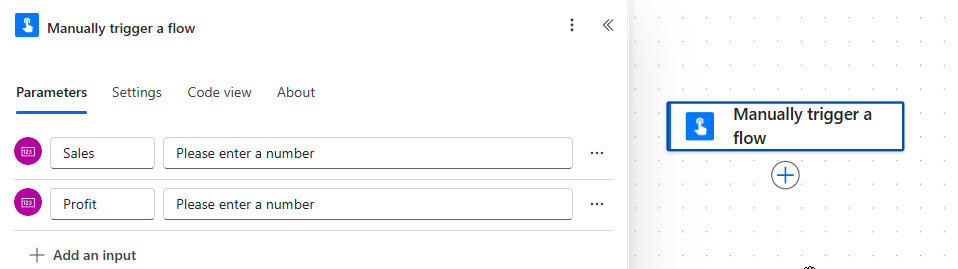
Step 2: Add Input Fields to the Trigger
- Click on the trigger to expand it
- Select + Add an input → choose Number
- Add two number inputs: Sales and Profit
Step 3: Add the Initialize Variable Action
- Click + New step
- Search for Initialize variable and select it
- Fill in the fields:
- Name:
VarSalesData - Type: Object
- Value: Enter your JSON with dynamic content from the trigger:
- Name:
{
  "Sales Percent Value": "@{triggerBody()?['number']}",
  "Profit Percent Value": "@{triggerBody()?['number_1']}"
}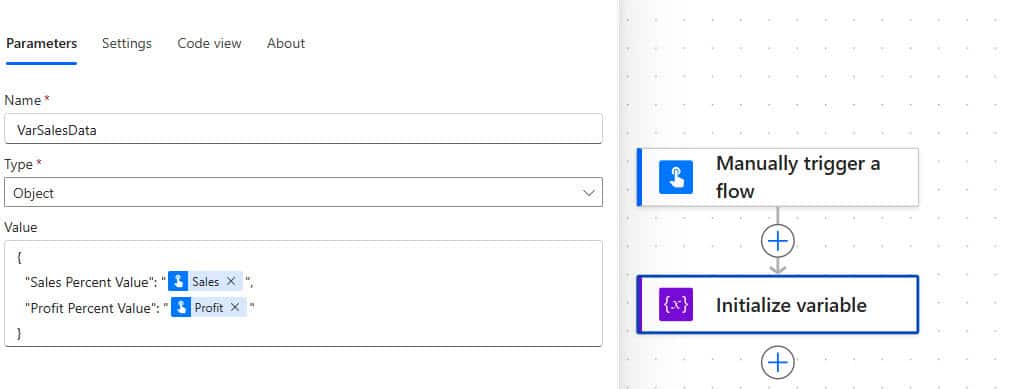
Replace the placeholder text with the actual dynamic content tokens from your trigger inputs by clicking inside the value field and selecting from the dynamic content panel.
Step 4: Add a Send an Email Action
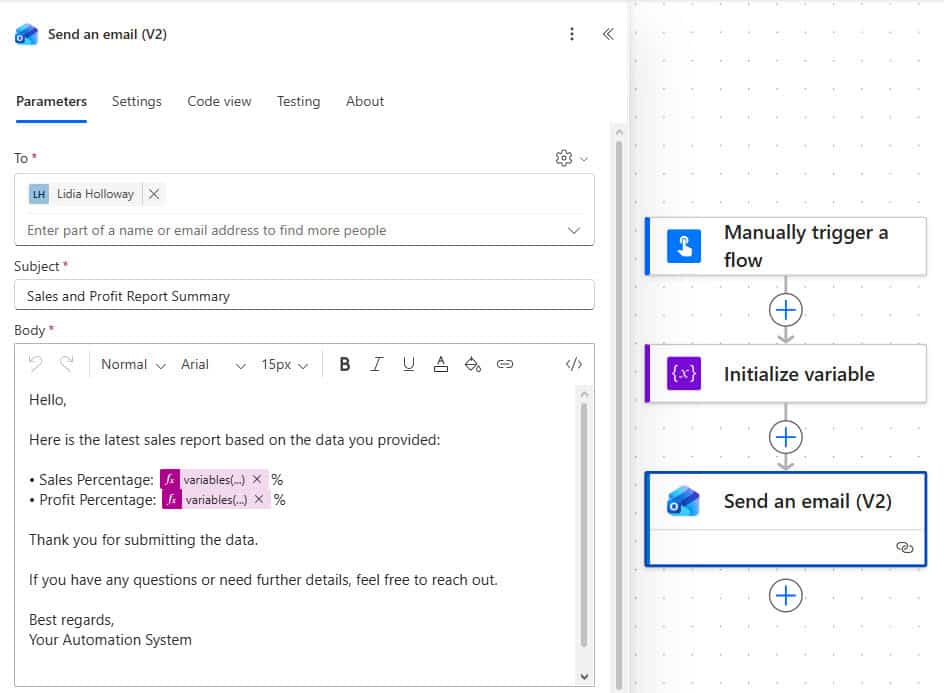
- Add a Send an email (V2) action
- Fill in To, Subject, and Body fields
- In the body, you can reference individual properties from the variable using an expression like:
Hello,

Here is the latest sales report based on the data you provided:

• Sales Percentage: @{variables('VarSalesData')?['Sales Percent Value']}%
• Profit Percentage: @{variables('VarSalesData')?['Profit Percent Value']}%

Thank you for submitting the data.

If you have any questions or need further details, feel free to reach out.

Best regards,
Your Automation System
Step 5: Save and Test
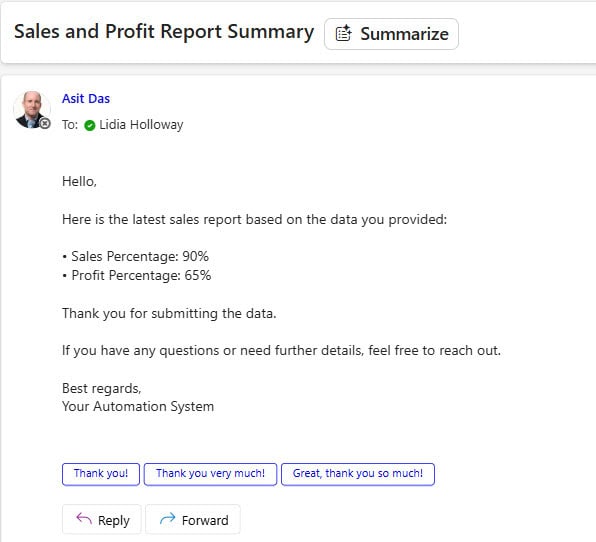
- Click Save, then Test → Manually → Run flow
- Enter your test values and confirm the email arrives with the correct data
Example 2: Capture SharePoint Item Data in an Object Variable
The scenario: This flow triggers whenever a SharePoint list item is created or modified. I want to capture key item fields into an Object variable and use them later in the flow.
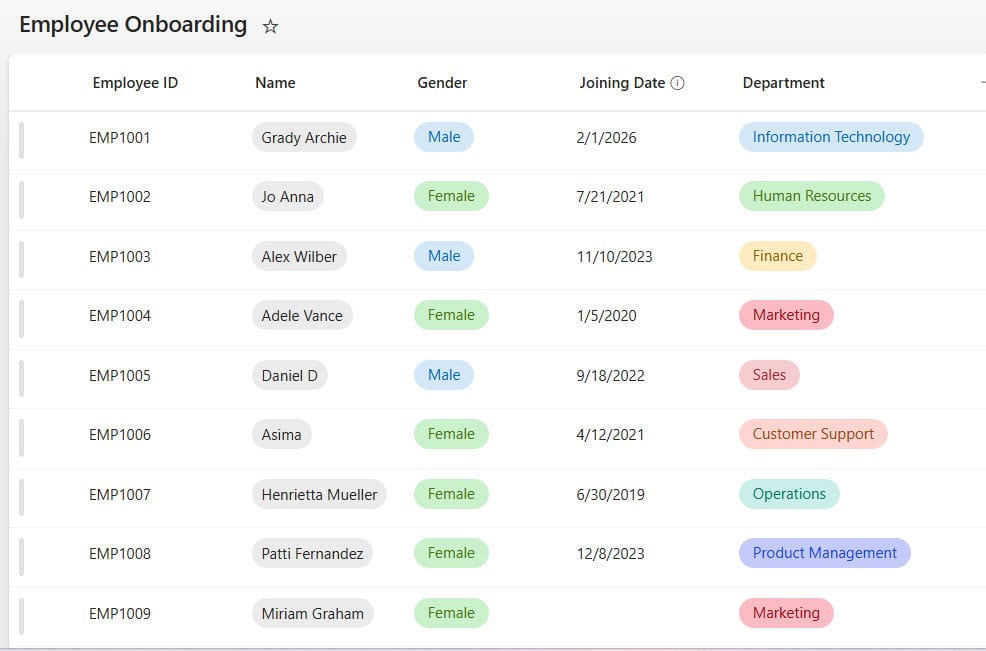
For this example i have a SharePoint list called Employee Onboarding:
Step 1: Create the Flow with a SharePoint Trigger
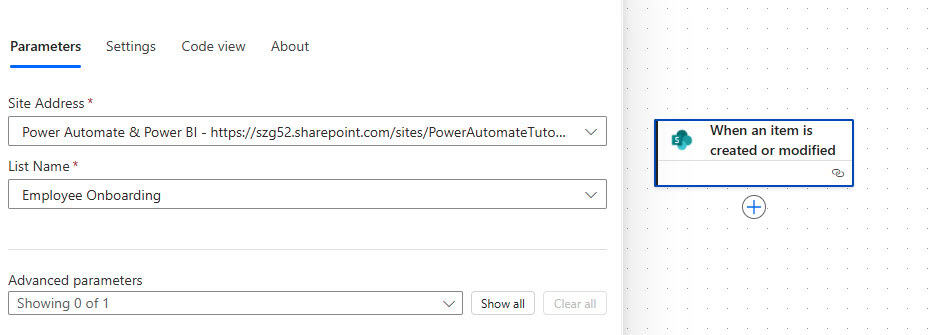
- Create a new automated cloud flow
- Choose When an item is created or modified trigger
- Select your Site Address and List Name
Step 2: Initialize the Object Variable
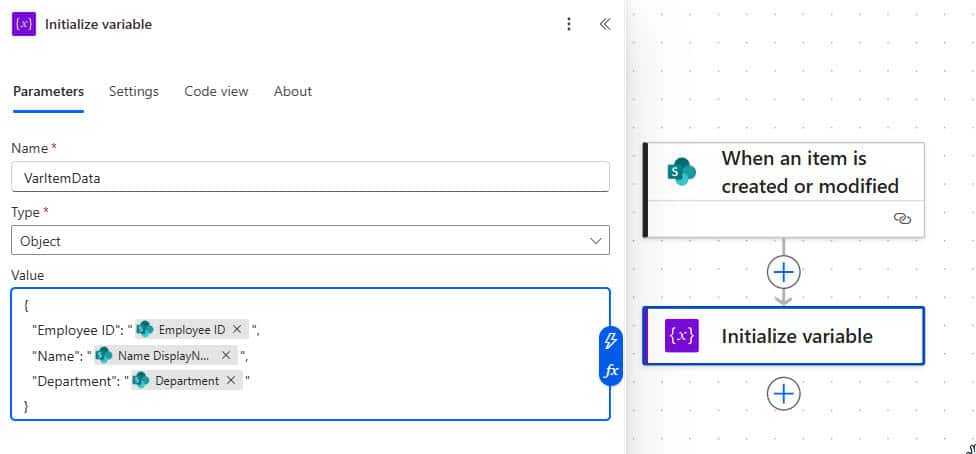
- Add an Initialize variable action as the first step after the trigger
- Fill in:
- Name: VarItemData
- Type: Object
- Value: Build your JSON using dynamic content from the SharePoint trigger. For example:
{
  "Employee ID": "<Employee ID from trigger>",
  "Name": "<Display Name column from trigger>",
  "Department": "<Department from trigger>"
}
Step 3: Add a Compose to Check the Output
- Add a Compose action and set the input to
variables('VarItemData')
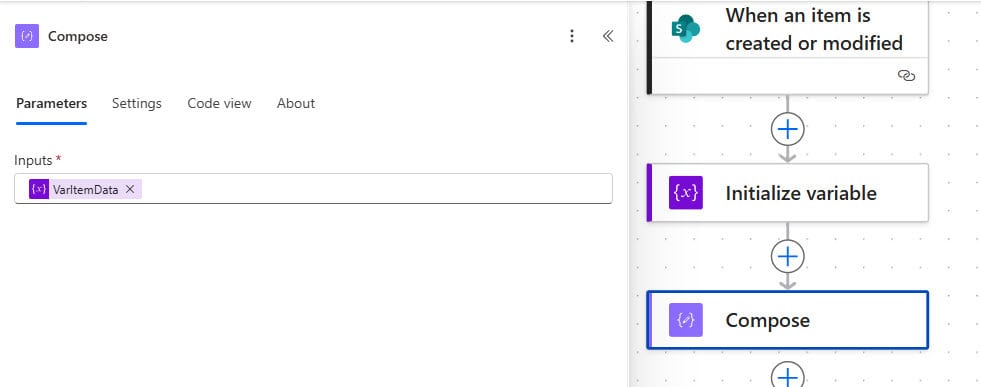
Run the flow by modifying a list item and check the run history — the Compose output should show your JSON with the actual item values populated

How to Read and Update Object Variable Properties in Power Automate
Once your Object variable is initialized, here’s how to work with its individual properties.
Reading a Property
Use this expression in any action to read a specific key from your Object variable:
variables('VarItemData')?['Title']Replace VarItemData with your variable name and Title with your key name.
Updating an Existing Property
You cannot directly update a single property in an Object variable the same way you’d do a Set variable on a String. Instead, you use setProperty() inside a Set variable action:
setProperty(variables('VarItemData'), 'Status', 'Completed')This updates the Status key to "Completed" and returns the updated object, which you then assign back to VarItemData using the Set variable action.
Adding a New Property
Use addProperty() to add a key that doesn’t exist yet:
addProperty(variables('VarItemData'), 'ReviewedBy', 'Bijay')Important:
addProperty()fails if the property already exists. If you’re not sure whether the key exists, usesetProperty()instead — it will create the key if it’s missing, or update it if it’s already there.
Removing a Property
Use removeProperty() to strip out a key:
removeProperty(variables('VarItemData'), 'AssignedTo')Common Errors and How to Fix Them
Here are the mistakes I see most often with Object variables — and exactly how to solve them.
Error 1: “The operation ‘Initialize variable’ can only be used at the top level”
Why it happens: You’ve placed the Initialize variable action inside a Condition, Apply to each loop, Scope, or any other container.
Fix: Move all your Initialize variable actions to the very top of the flow, before any containers or conditions. You can still use Set variable inside a container — just not Initialize variable.
Error 2: Invalid JSON value — flow fails on initialization
Why it happens: Your JSON in the value field has a formatting issue. The most common culprit is single quotes instead of double quotes, or a trailing comma after the last key-value pair.
Fix: Always use double quotes for both keys and values. Use a free JSON validator (like jsonlint.com) to paste and check your JSON before saving the flow.
// Wrong
{'Name': 'Bijay', 'Dept': 'IT',}

// Correct
{"Name": "Bijay", "Dept": "IT"}
Error 3: “addProperty() failed” — property already exists
Why it happens: You used addProperty() to add a key that was already in the object.
Fix: Switch to setProperty() instead. It handles both creating and updating a key, so it’s the safer default choice when you’re not certain about the object’s current state.
Error 4: Trying to use variables from a previous flow run
Object variables only exist for the duration of a single flow run. They are not persisted across runs. If you need data to survive between runs, store it in a SharePoint list, Dataverse table, or environment variable instead.
Quick Reference: Key Expressions for Object Variables
Here’s a cheat sheet I use regularly:
| What You Want to Do | Expression |
|---|---|
| Read a property | variables('VarName')?['keyName'] |
| Update an existing property | setProperty(variables('VarName'), 'keyName', 'newValue') |
| Add a new property | addProperty(variables('VarName'), 'keyName', 'value') |
| Remove a property | removeProperty(variables('VarName'), 'keyName') |
| Check if a key exists | contains(variables('VarName'), 'keyName') |
Frequently Asked Questions
Can I initialize an Object variable inside an Apply to Each loop?
No. Initialize variable must always be at the top level of the flow. Place your Initialize variable action before the loop, then use Set variable inside the loop to update its value.
Can I store nested JSON in an Object variable?
Yes, you can store nested JSON — for example, an object that contains another object or an array as a value. However, working with deeply nested structures gets complicated. If your data is complex, consider using a Compose action to build the JSON and Parse JSON to break it apart for easier access.
What’s the difference between an Object variable and an Array variable in Power Automate?
An Object variable stores key-value pairs (like a record or dictionary). An Array variable stores an ordered list of items (like multiple records). Use an Object when you have named fields; use an Array when you have a collection of items you want to loop through.
Does initializing too many variables slow down my flow?
Each Initialize variable action counts as an API call in Power Automate. For simple config data that you only need to read (not update), using a Compose action and referencing it with outputs('Compose') is more efficient and uses fewer API calls.
You may also like:
- Convert HTML to Text in Power Automate
- Power Automate: Get Attachments From a SharePoint List Item
- Update Multiple Rows in Dataverse Using Power Automate
- Loop Through SharePoint List Items in Power Automate
- Import Data From Excel to a SharePoint List Using Power Automate

After working for more than 18 years in Microsoft technologies like SharePoint, Microsoft 365, and Power Platform (Power Apps, Power Automate, and Power BI), I thought will share my SharePoint expertise knowledge with the world. Our audiences are from the United States, Canada, the United Kingdom, Australia, New Zealand, etc. For my expertise knowledge and SharePoint tutorials, Microsoft has been awarded a Microsoft SharePoint MVP (12 times). I have also worked in companies like HP, TCS, KPIT, etc.

