
Arrays are a common feature in Microsoft Power Automate flows when retrieving data from a SharePoint list, an Excel table, or any other data source.
In this article, I will explain everything about the Power Automate array, like what the Power Automate array variable is, Power Automate array syntax, how to create an array Power Automate, and many more:
- Power Automate set array variable
- Power Automate initialize variable array
- Append to an array variable in Power Automate
- Power Automate apply to each array variable
- Power Automate initialize an array of objects
Power Automate Array Variable
To initialize an array variable in Power Automate, see the below-mentioned steps:
Array: An array is a data structure with a list of items or elements with the same data type, like string or integer.
Example:
Suppose I have taken a list of values like SharePoint, Power Automate, and Power BI. Now, the result of an array with given values will display like [“SharePoint”,”Power Automate”,”Power BI”].

Here are the steps to create a flow:
1. Navigate to Power Automate, then click + Create -> select Instant cloud flow. Select Manually trigger a flow -> click on the Create button.
2. To initialize the variable array, take the ‘Initialize variable‘ flow action so that the array variable can be used during the flow.
Provide the below properties:
- Name: Give a name for the variable.
- Type: Select type as an ‘Array‘ from drop-down.
- Value: Take an array with the values here.

3. In this step, add the ‘Compose’ action to take the initialized array value from dynamic content.

4. Now, it is time to save and test the flow. Click on Save and Test -> Test Manually. The outputs of the compose action will display the initialized array variable as shown below:

This is how to initialize a variable array using Power Automate.
Append to an Array Variable in Power Automate
To merge the values to an array variable, check out the example below:
Example:
Assume that I have taken an array with values like [Power apps, Power Automate, and Power Bi]. And I wanted to merge one more value to that array value, like Power Virtual Agents.
Then, the resulting array value will be [ “Power apps”, “Power Automate”, “Power Bi”, “Power Virtual Agents” ].

Go through the below steps:
1. In the Initialized variable flow action, provide the array values. Enter Name, Type as an array, and Value in an Instant cloud flow.

2. In the next step, add Append to array variable action to add more items to the variable array.
- Name: Choose the array variable name from the dropdown menu.
- Value: Provide the value that needs to be added.

3. To show the output of appended values to the variable, add a Compose action.
- Inputs: Take the initialized variable value from the dynamic content.

Once the flow gets ready, save and test it.
Output:
The result will show in compose outputs. The new item provided in the append to array variable is added to the end of the array.
Refer to the image below:

Create an Array in Power Automate
To create an array in Power Automate, look at the below example:
Example:
Let’s take the group of integer values like (1000,2000,3000). I require to create an array with these values.
Result:
[
1000,
2000,
3000
]
Then the result would be like as shown in below image:

Now, let’s check out how to create an array in Power Automate flow:
Take a manual trigger flow trigger in Power Automate. To use CreateArray() expression, add Compose action.
The create array() function will create an array by providing the items for the array inside the expression.
Syntax: create array(<item1>,<item2>,…,<itemn>)
createArray(1000,2000,3000)
save and run the flow.
Output:
The output will show an array from the given values.

To create an array with the string values, provide the string in a single quotes characters.

Output:
The above expression will create an array with the given string values, as shown below figure:

Note:
To create an array with string values, it must be encased with single quote characters [‘David’,’Jack’]=> Result will give the array [“David”,”Jack”].
To make an array with interger values, avoid the single quotes around the number values. [1000,2000] => Resulting array [1000,2000].
This way, we can create an array in Power Automate using the createarray() function.
Set Array Variable in Power Automate
To set an array variable in Power Automate, see the example:
Set Variable: Power Automate variables store the data during the flow. Meanwhile, the Power Automate set variable is used to change the default value of the initialized variable and assign a different value to the existing variable.
Example:
Here, I have an array of objects like below:
[
  {
    "age": 32,
    "UserName": "Watson",
    "Country": "Washington"
  },
  {
    "age": 52,
    "UserName": "Kayla",
    "Country": "Texas"
  },
  {
    "age": 82,
    "UserName": "Alex",
    "Country": "Arizona"
  }
]
In the above-given array of objects, my requirement is that if the array item has an age less than 50, then the country value should be set to New York.

Follow the below steps to achieve this:
1. Initialize the variable with an array of objects, as shown in the screenshot below. Provide a Name, Type, and Value.

2. Next, add a Filter array flow action to filter the items based on the filter query.
- From: Take initialize variable output from dynamic content.
- Filter Query: Add the below expression.
@item()?['age'] is less than 50
3. For each loop, take a body of the filter array action in select output from the previous step.
4. Inside the loop, take the Set variable action.
- Name: Choose a variable name from the drop-down.
- Value: Provide array value here.
This means that if the age value is less than 50, the country value of the array item should be set to New York.

Save and run the flow.
Output:
The screenshot below shows the set variable output. By default, the existing value is present in a variable.

This is how to set an array variable in Power Automate flow.
Power Automate Array Variable Apply to Each
To loop through each array variable in Power Automate, dive into the example below:
Example: In this example, I will take the array value as below:
[
  "Power Apps",
  "Power Automate",
  "Power BI",
  "Power Virtual Agents"
]
I wanted to loop through each array value so that the array values would get saved to the list of items from an array and then to the SharePoint list.

Go through the below steps:
The image below represents the SharePoint list with a column called [Enrollment Course].

1. Create a Power Automate Instant cloud flow.
2. Select the Initialize variable action, specify the variable name, type as an array, and set the value of the array as below.

3. Next, loop through each item in an array using Apply to each loop. Select Apply to each action.
- Value: Choose the initialized array value from the dynamic content.

4. After that, add a Create item action of SharePoint. Provide the details like Site Address and List Name:
Click on showall to display the advanced properties:
Title[Enrollment Course]: Take the value of a current item from the dynamic content.

Now, save and run the flow.
5. When the flow runs successfully, check out the SharePoint list. You can see that list items have been created from the array values.
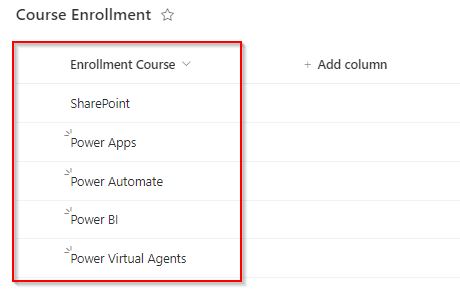
This way, you can loop through the array variable in Power Automate.
Initialize Variable Array of objects in Power Automate
To initialize the array of objects in a Power Automate flow, go through the example below:
Initializing a variable can set the value and type to the given or existing variable. Once the variable is initialized, it can be used during the flow to set and retrieve values, change the default value, etc.
Example:
Let’s take an array of objects like this:
I need to initialize this array of objects to use these values during the flow. The result will be as shown in below figure:
[
  {
    "age": 32,
    "UserName": "Watson",
    "Country": "Washington"
  },
  {
    "age": 52,
    "UserName": "Kayla",
    "Country": "Texas"
  },
  {
    "age": 82,
    "UserName": "Alex",
    "Country": "Arizona"
  }
]

See the below steps:
1. Select the Initialize variable action, set the variable Name and Type as an array, and provide the value as an array of objects like below:

Now, the array of objects is initialized.
2. To get the first object from an array, use the first() expression in the Compose flow action.
first(variables('User Registration'))
Once the flow gets created, save and test it manually.
Output:
You can see the result in compose outputs as displayed in the image below:

This is an example of Power Automate initializing a variable array of objects.
Also, you may like:
- Power Automate Split String into Array
- Power Automate Rename SharePoint File
- Power Automate Send Email With Attachment
- Delete Files Older than 3 Years from SharePoint Document Library Using Power Automate
Conclusion
I trust this Power Automate tutorial is helpful and understanding. In this tutorial, I have discussed the topics like:
- Power Automate initialize variable array
- Append to array variable in Power Automate
- Create an array in Power Automate
- Power Automate apply to each array variable
- Initialize array of objects in Power Automate

After working for more than 18 years in Microsoft technologies like SharePoint, Microsoft 365, and Power Platform (Power Apps, Power Automate, and Power BI), I thought will share my SharePoint expertise knowledge with the world. Our audiences are from the United States, Canada, the United Kingdom, Australia, New Zealand, etc. For my expertise knowledge and SharePoint tutorials, Microsoft has been awarded a Microsoft SharePoint MVP (12 times). I have also worked in companies like HP, TCS, KPIT, etc.


It is awesome with insightful information!
I enjoy much reading the topics.
Thank you.
Can someone help me with array select issue? https://powerusers.microsoft.com/t5/Building-Power-Apps/Select-from-JSON-child-array/m-p/1486291#M384943