
Most Power BI dashboards fail for a surprisingly simple reason — not because the data is wrong, but because they were built without a clear audience in mind. I’ve seen dashboards with 30 visuals on one page that told no story at all, and I’ve seen a single-page dashboard with 5 KPIs that helped a sales manager make a $2M decision in under two minutes.
In this guide, I’ll walk you through 10 real Power BI dashboard examples across industries — Sales, Finance, HR, E-commerce, and more. For each one, I’ll tell you what visuals are used, why they work, and who should actually be using that dashboard. Every example comes with a downloadable PBIX file so you can open, explore, and adapt it to your own data.
Whether you’re a Power BI beginner trying to build your first dashboard or an analyst looking for fresh ideas, there’s something here for you.
What Is a Power BI Dashboard, Exactly?
Before we get into the examples, let me quickly clarify what a Power BI dashboard actually is — because people often confuse it with a report.
A Power BI dashboard is a single-page view where you pin visuals from one or more reports. Think of it as your summary screen — the top-level view you check every morning. It lives in the Power BI Service (the online version), and each visual on it is called a tile.
A Power BI report, on the other hand, can have multiple pages and is where you do the deeper analysis. You build reports in Power BI Desktop, then publish them to the Service and pin visuals to a dashboard.
Here’s the key difference in one line: A report is where you explore. A dashboard is where you monitor.
Which Dashboard Should You Build? (Quick Decision Guide)
Before you start building, ask yourself one question: Who is going to look at this, and what decision do they need to make?
Use this as a quick guide:
- Need to track sales performance by region or rep? → Sales Analysis Dashboard
- Running an e-commerce store? → Product Sales Dashboard
- Tracking monthly profit and cash flow? → Financial Analytics Dashboard
- Managing a team or department? → HR Management Dashboard
- Understanding your customer base? → Customer Segmentation Dashboard
- Monitoring marketing campaigns? → Marketing Dashboard
- Tracking project delivery or operations? → Operations Dashboard
If you’re not sure, start with a Sales or Financial dashboard — they tend to be the most straightforward and give you a solid foundation for learning how Power BI works.
Power BI Dashboard Examples
1. Customer Segmentation Dashboard
Best for: B2B sales teams, senior managers, regional directors
This is one of my favorite starting dashboards because it answers the question most sales managers ask every Monday morning: “Where is our revenue actually coming from?”
The Customer Segmentation Dashboard breaks down your total profit, sales, and order returns by customer, city, product category, and region — all on a single canvas.
Visuals used in this dashboard:
- Card visuals — displays Total Profit, Total Cost, Total Sales, and Total Order Returns at a glance
- Waterfall chart — shows how sales build up (or drop) across regions; great for spotting which region is dragging down overall numbers
- Stacked Column chart — shows total orders per city with order returns layered on top
- Table visual — gives a detailed breakdown of profit by customer, city, and product category
From my experience: The Waterfall chart is the one visual that always starts a conversation in a business review. The moment a stakeholder sees a red column — meaning a region that’s losing money — they stop scrolling and start asking questions. That’s exactly what a good dashboard should do.
Data source: Excel spreadsheet
📥 [Download Customer Segmentation Dashboard PBIX file]
2. Product Sales Dashboard
Best for: E-commerce teams, product managers, marketing analysts
If your business sells products online, this dashboard gives you a clean view of what’s selling, what’s not, and where the profit is actually coming from.
Visuals used in this dashboard:
- Card visuals — Total Sales, Total Discount, Total Profit, Total Order Returns
- Pie chart — Profit by Product Name and Category; helps you see which product lines are most profitable at a glance
- Stacked Bar chart — Quantity ordered per month by product; useful for spotting seasonality
- Treemap — Profit by City and Product Name; the size of each box tells you where the money is
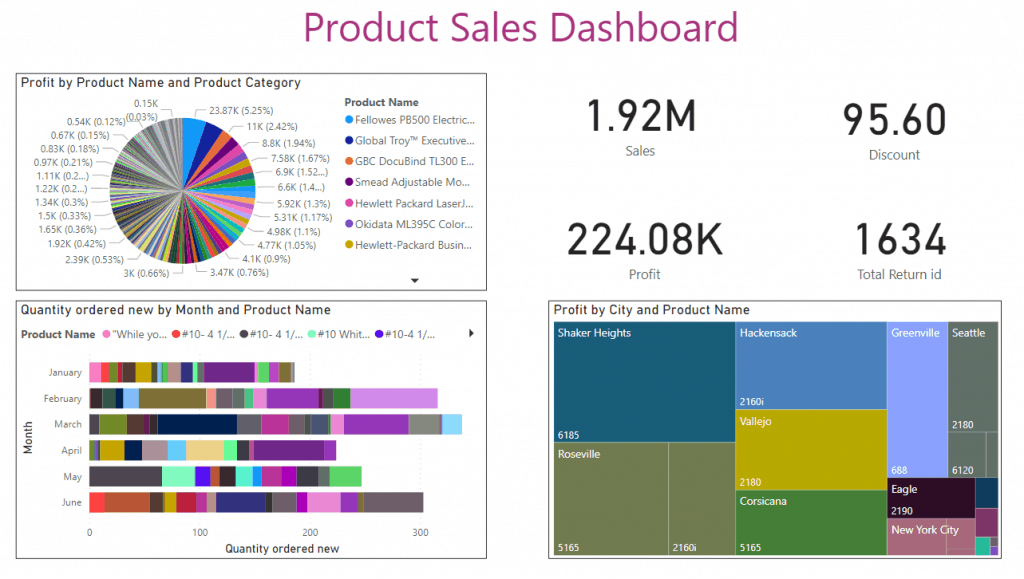
When to use this dashboard: This is ideal for your weekly e-commerce review. Open it on Monday, glance at the Treemap to see which city-product combination is performing, then check the Stacked Bar chart to confirm whether last month was above or below trend.
A tip on Treemaps: They look great in presentations but can get messy if you have too many categories. I’d recommend keeping it to your top 10–15 product names for a clean view.
Data source: Excel spreadsheet
📥 [Download Product Sales Dashboard PBIX file]
3. Sales Analysis Dashboard
Best for: Regional sales managers, sales ops teams, business analysts
This dashboard goes a step deeper than the Product Sales Dashboard. Instead of just showing what sold, it shows why certain segments outperform others — revenue by customer segment, discount impact by product category, and profitability by region.
Visuals used in this dashboard:
- Card visuals — Total Sales, Total Discount, Total Profit, Total Cost, Total Quantity
- Line and Stacked Column Chart (Combo chart) — Sales by customer segment over time; I love this visual because you can see trends and volume in the same chart
- Funnel chart — Discount value by product category; this is where most teams discover they’re giving away margin they didn’t realize
- Donut chart — Profit by Product Name and City

From my experience: The Funnel chart for discount analysis is the most underused visual in sales dashboards. I’ve seen teams running product discounts for months without realizing one category was eating 40% of their margin. This chart makes that visible in seconds.
Data source: Excel spreadsheet
📥 [Download Sales Analysis Dashboard PBIX file]
4. Financial Analytics Dashboard
Best for: CFOs, Finance Directors, FP&A teams, Financial Analysts
This is the dashboard I recommend when someone in finance says, “I just need to see the big picture.” It pulls together revenue, gross profit, and unit sales across geographies and product segments — the kind of view that belongs on a Monday morning executive screen.
Visuals used in this dashboard:
- Card visuals — Total Profit, Total Sales, Total Gross Sales
- Line chart — Sales vs. Profit over time; useful for spotting quarters where revenue grew but profit didn’t
- Gauge charts — Two gauges: one for Profit and Units Sold against a target, one for Gross Profit Percentage; these are great for presenting progress to leadership
- Pie chart — Profit by Sales and Month
- Matrix — Total Sales, Profits, and Units Sold by month (this is your drill-down table)
- Treemap — Sales by Country; a clean geographic breakdown at a glance

When to use this dashboard: This works best for monthly business reviews. The Gauge charts make it easy to see at a glance whether you’re on track for the quarter — without having to scan through a table of numbers.
Data source: Microsoft Financial Sample (Excel)
📥 [Download Financial Analytics Dashboard PBIX file]
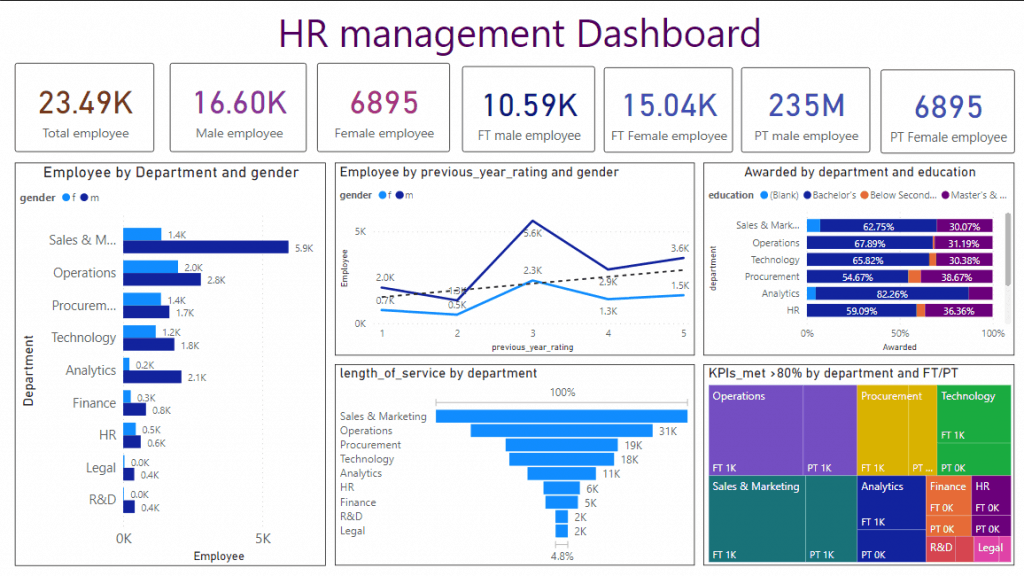
5. HR Management Dashboard
Best for: HR Directors, People Operations teams, Department Heads
HR dashboards are something I think many organizations overlook. Most teams track revenue and sales closely, but run their people data off spreadsheets. This dashboard changes that.
It tracks headcount, gender distribution, departmental performance, and employee ratings — all in one view.
Visuals used in this dashboard:
- Card visuals — Total Employees, Total Male, Total Female, Full-time and Part-time breakdowns for each gender
- Clustered Bar chart — Headcount by Department and Gender
- 100% Stacked Bar chart — Awards Won by Department and Education; shows relative distribution rather than absolute numbers
- Line chart — Employee performance ratings by year and gender
- Funnel chart — Length of Service by Department; this one is genuinely eye-opening — it shows which departments retain employees longest
- Treemap — KPI performance (above 80%) by Department and Employment Type
From my experience: The Funnel chart for Length of Service is the hidden gem of this dashboard. In one organization I worked with, it showed that one department had almost no employees beyond 2 years of service, which flagged a retention problem that hadn’t been formally identified yet. That’s the power of properly visualizing HR data.
Data source: HR Excel dataset (Google Drive)
📥 [Download HR Management Dashboard PBIX file]
6. Sales Performance Dashboard (KPI Scorecard Style)
Best for: Sales Directors, Revenue Operations, VP of Sales
This is a more advanced version of the Sales Analysis Dashboard. Instead of raw numbers, it focuses on KPI scorecards — showing actual vs. target for each rep, region, or product line.
Key visuals to include:
- KPI visuals (built-in Power BI KPI visual) — shows actual, target, and trend in a single tile
- Clustered Column chart — Actual vs. Budget by region
- Matrix — Rep-level performance table with conditional formatting (green = above target, red = below)
- Slicer — Filter by quarter, rep, or region
When this is more useful than a standard sales dashboard: When you need accountability. A standard sales dashboard shows you what happened. A KPI scorecard dashboard shows you how you’re doing against the plan.
7. Marketing Campaign Dashboard
Best for: Digital Marketing Managers, CMOs, Growth Teams
This dashboard connects campaign spend to outcomes — impressions, clicks, conversions, and cost-per-acquisition. If you’re running paid ads, email campaigns, or social media, this gives you one place to see what’s actually working.
Key visuals to include:
- Card visuals — Total Spend, Total Conversions, Average CPA, ROAS
- Line chart — Impressions and Clicks over time by channel
- Stacked Bar chart — Spend vs. Conversion by campaign
- Scatter chart — Cost vs. Conversion Rate per campaign (great for spotting high-ROI campaigns)
A note on data sources: You can connect Power BI to Google Analytics, Facebook Ads (via a connector), or pull data from Excel exports from any ad platform.
8. Supply Chain and Operations Dashboard
Best for: Operations Managers, Supply Chain Analysts, Logistics Teams
If you manage inventory, delivery timelines, or supplier performance, this dashboard keeps you from being blindsided by stockouts or delays.
Key visuals to include:
- Gauge charts — Inventory levels vs. Minimum threshold
- Line chart — Order fulfillment time over months
- Table visual — Supplier performance: delivery rate, lead time, defect rate
- Map visual — Delivery performance by region or warehouse
A practical tip: Pair this dashboard with Power BI’s automatic data refresh so your operations team always sees live numbers without having to manually refresh the file.
9. Executive Summary Dashboard
Best for: C-suite, Board Presentations, Quarterly Business Reviews
This is the dashboard you show in the boardroom. The goal isn’t detail — it’s a clean, one-page view of business health.
Key visuals to include:
- 4–6 Card visuals only (Revenue, Gross Profit, Headcount, Customer Count, CSAT Score)
- One Line chart for the revenue trend (last 12 months)
- One Gauge or KPI visual for a critical target (e.g., Annual Revenue vs. Goal)
- A Slicer to filter by business unit or quarter
Design rule I always follow for executive dashboards: If a stakeholder can’t understand it in 10 seconds without explanation, it needs to be simplified. Remove every visual that doesn’t directly answer a business question.
10. E-Commerce Returns and Refunds Dashboard
Best for: E-commerce Operations, Customer Experience Teams, Finance
Returns data is something most e-commerce dashboards ignore, but it can hide a serious profitability problem. This dashboard surfaces exactly that.
Key visuals to include:
- Card visuals — Total Returns, Total Refund Value, Return Rate %
- Stacked Bar chart — Returns by product category and reason
- Line chart — Return rate trend over time
- Table — Top 20 returned SKUs with return reasons
From my experience: Return rate by product category is one of those metrics that, once you visualize it, you can’t unsee. I’ve seen businesses discover that one product category had a 35% return rate simply because the product description didn’t match what customers received. Fixing the listing fixed the returns.
What Makes a Good Power BI Dashboard? (Design Principles)
Beyond the examples above, here are the principles I keep coming back to whenever I build or review a dashboard:
- Keep it to one purpose per page. Every dashboard page should answer one question. If you’re trying to show Sales AND HR AND Finance on the same page, you’re building a report, not a dashboard.
- Limit your visuals. Six to eight visuals per page is a good rule of thumb. More than that and the dashboard becomes hard to read — especially on smaller screens.
- Use cards for your most important numbers. The top row of your dashboard should always be Card visuals showing your top 3–5 KPIs. These are the numbers a stakeholder looks at in the first five seconds.
- Be consistent with colors. Pick one color for positive performance (I use green) and one for negative (red). Use your brand color for primary charts. Don’t use more than five colors across the whole dashboard.
- Always test on mobile. Power BI has a mobile layout editor. Use it. More and more stakeholders check dashboards on their phones.
- Use slicers, not separate pages, for filters. If the only difference between two dashboard pages is a region filter, you don’t need two pages. Add a Slicer and let the user filter themselves.
Power BI Dashboard Design Checklist
Before you publish any Power BI dashboard, run through this checklist:
- Does each page answer one clear business question?
- Are your top KPIs shown in Card visuals at the top?
- Is your color scheme consistent throughout (max 5 colors)?
- Have you removed all visuals that don’t directly drive a decision?
- Are slicers placed consistently (top or left side of every page)?
- Is text readable at 100% zoom without squinting?
- Have you set up data refresh so the dashboard updates automatically?
- Have you tested the mobile layout?
- Have you applied Row-Level Security if different users should see different data?
- Have you shared it with the right audience (not just published it to your workspace)?
Power BI Dashboard vs. Report — What’s the Difference?
I get this question a lot, so let me answer it clearly.
| Power BI Dashboard | Power BI Report | |
|---|---|---|
| Pages | Single page only | Multiple pages |
| Where it lives | Power BI Service only | Desktop + Service |
| Purpose | Monitor KPIs at a glance | Explore and analyze data |
| Interactivity | Tiles link to report pages | Full cross-filtering between visuals |
| Data alerts | Yes — get notified when a value crosses a threshold | No |
| Best for | Daily/weekly monitoring | Deep-dive analysis |
In practice, most organizations use both reports for analysis and dashboards for daily monitoring. Build your report in Power BI Desktop first, then pin your most important visuals to a dashboard in the Service.
Also, you may like some more Power BI tutorials:
Frequently Asked Questions
How many visuals should a Power BI dashboard have?
Stick to 6–8 visuals per page. More than that increases load time and makes the dashboard harder to read. If you need more visuals, spread them across report pages and link them from the dashboard.
Can I use these Power BI dashboard examples for free?
Yes. All the PBIX files linked in this tutorial are free to download. Open them in Power BI Desktop (also free), swap in your own data source, and you’re ready to go.
What’s the best Power BI dashboard for beginners?
Start with the Product Sales Dashboard or Customer Segmentation Dashboard. Both use straightforward Excel data sources and common visuals like Cards, Pie charts, and Bar charts — no complex DAX required.
Can Power BI dashboards refresh automatically?
Yes. In the Power BI Service, you can set up scheduled refresh (up to 8 times per day on Pro, 48 times per day on Premium) so your dashboard always shows up-to-date data without manual intervention.
What’s the difference between a KPI visual and a Card visual in Power BI?
A Card visual shows a single number. A KPI visual shows a number plus a trend indicator and comparison to a target — so it’s more useful when you want to communicate whether you’re on track or behind.
Can I embed a Power BI dashboard in SharePoint or Teams?
Yes, and I use this regularly. You can embed a Power BI report directly in a SharePoint page using the Power BI web part, or pin a report tab inside a Microsoft Teams channel. No extra licensing needed beyond what your organization already has.

After working for more than 18 years in Microsoft technologies like SharePoint, Microsoft 365, and Power Platform (Power Apps, Power Automate, and Power BI), I thought will share my SharePoint expertise knowledge with the world. Our audiences are from the United States, Canada, the United Kingdom, Australia, New Zealand, etc. For my expertise knowledge and SharePoint tutorials, Microsoft has been awarded a Microsoft SharePoint MVP (12 times). I have also worked in companies like HP, TCS, KPIT, etc.

